Return/Dropoff Photos and Signatures Not Appearing on Item Receipt PDF
Last updated: August 17, 2026
When capturing signatures and photos during a customer equipment return (Will Call), those images may not automatically appear on the item receipt PDF, even though they are visible in the checklist. This is controlled by a form configuration setting that must be enabled for each relevant field.
How to enable return photos and signatures on the item receipt
Go to Settings > Configuration > Form.
Locate the Signature or Pictures field used during the return process.
Open the field's edit/configuration dialog.
Check the option labeled Include in customer delivery receipt.
Save your changes.
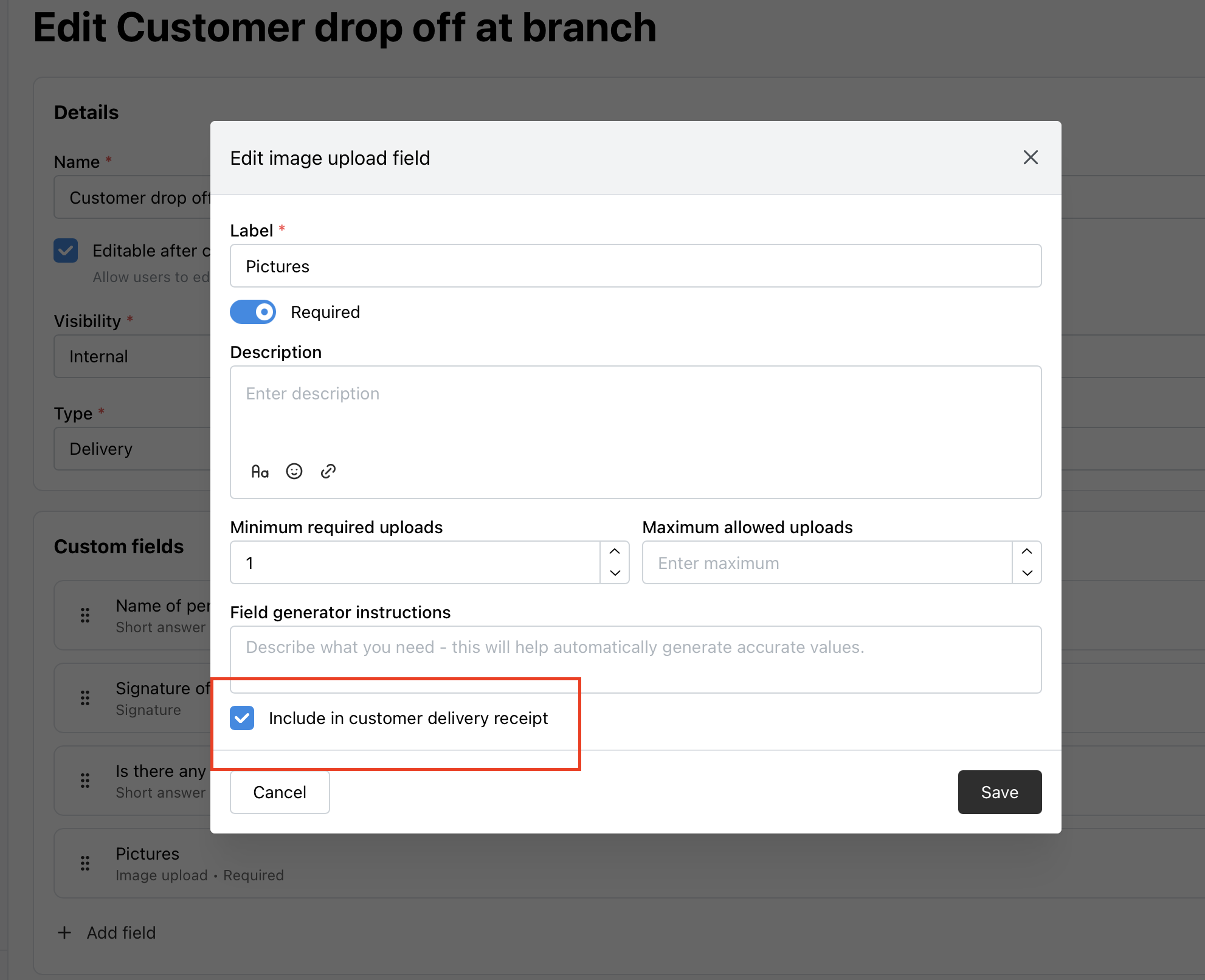
Once this option is enabled, signatures and photos captured during customer returns will appear on the item receipt PDF going forward.
How to disable this setting
If you want to stop including return photos or signatures on the item receipt, follow the same steps above and uncheck the Include in customer delivery receipt option for the relevant field.
Note: This setting applies going forward. Orders that were completed before the setting was enabled will not be retroactively updated.