How to Create a Serialized or Bulk Class
Last updated: October 15, 2026
Summary
A class defines a type of equipment or item in Moab: its pricing, how units are tracked, and how it posts to the general ledger. This article explains how to create a new class and how to choose between serialized and bulk tracking.
Prerequisites
The user has the Admin or Manager role, or a custom role with permission to create classes (klass__create* — via PRESET__inventory_actions, or granted explicitly).
The class’s Category exists. Categories group related classes (for example, “Aerial” or “Storage”) and are selected from a list, so a new category must be created first under Inventory > Categories.
The Rate profile the class will use exists. Rate profiles control the pricing structure and shift configuration and are required on every class.
The Inventory profile for the class is known. The inventory profile decides which GL accounts receive revenue, inventory value, depreciation, and cost of goods sold. It is set once at creation and rarely changed, so confirm the correct one with the accounting team before starting.
The tracking method has been decided. See the section Choosing Serialized or Bulk below.
Related Videos:
Watch Now: Creating Bulk and Serialized Inventory Classes
Choosing Serialized or Bulk
The Tracking field is the most important decision on the form because it cannot be changed casually once assets exist in the class.
Tracking | How Moab tracks it | Use it for |
|---|---|---|
Serialized | Every unit is its own asset record with a serial number, status, location, meters, and history | Rental fleet, vehicles, and any item the business needs to trace unit by unit |
Bulk | Quantity only. No individual asset records. Inventory is valued by a costing method (FIFO, weighted average, weighted average per location, or fixed cost) | Parts, consumables, accessories, and low-value items. Also includes Bulk items whose GL treatment must be split or routed to a separate accounting class |
A serialized class supports turn procedures, usage meters, and depreciation. A bulk class requires a Bulk costing methodology and does not support serial numbers, meters, or turn procedures.
Step-by-Step: Creating the Class
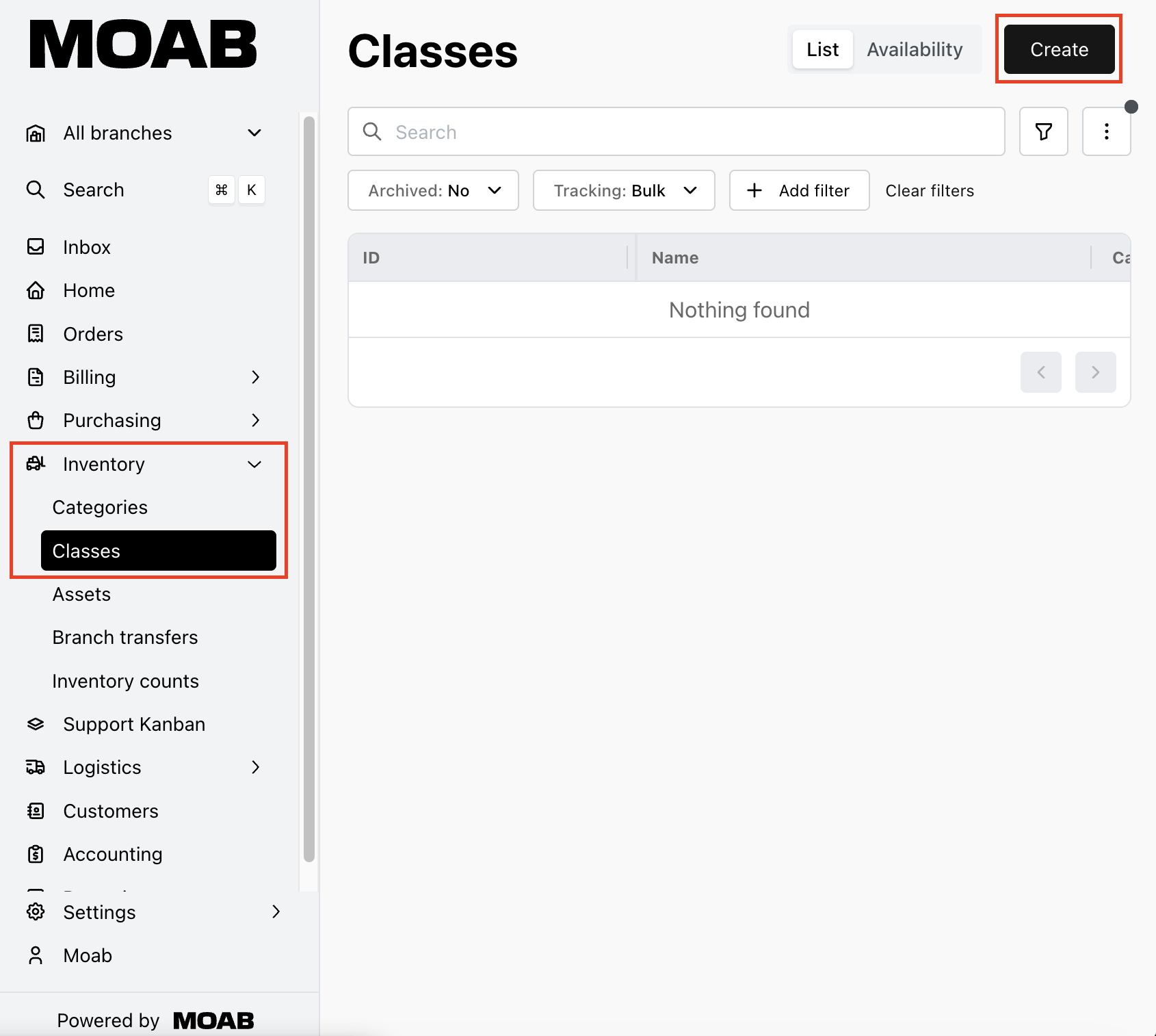
In the left sidebar, open Inventory > Classes. The Classes list opens.
In the upper right of the Classes list, click Create. The Create class form opens.
In the Category field, select the parent category.
In the Type field, select what the class represents: Rental, Sale, Non-rental, Delivery fee, Kit (rental), Modifier, Part, or Service. More information on choosing a type can be found here: Choosing a Class Type: Rental, Sale, Part, or Service.
In the Class name field, enter the display name for the class, for example 20' Storage Container.
Optionally, check Allow editing label on orders to allow order creators to rename this class’s line on an individual order. Leave off for standard inventory so the class name prints consistently.
In the Class ID field, enter the SKU or code the business uses for the class. Identifiers should be unique within each class type.
In the Rate profile field, select the rate profile that defines the class’s pricing tiers.
In the Commission group field, select the preferred commission group for sales.
In the Barcodes field, enter the barcode used for the class. A scanner can be used to add the class to an order or to search/open the class.
In the Asset Tracking field, select Serialized or Bulk. The form updates to show only the fields that apply to that tracking method.
Complete the tracking-specific fields described in the next two sections:
a. Fields for a Serialized Class
Field
What to set
Serial numbers
Add each serial number field the class needs. Mark one as primary and set whether each is required and must be unique within the class
Turn/Branch transfer procedure
The inspection checklist Moab opens when a unit is returned or moved to a different branch. Rental classes should have one.
Usage/Capacity metrics
Meters such as engine hours or miles. Choose whether a reading is recorded at on-rent and off-rent
Depreciation setting
The schedule applied to each asset in the class. Rental classes depreciate; sale classes do not
Maintenance configurations
Optional scheduled maintenance by days or by meter reading
b. Fields for a Bulk Class
Field
What to set
Costing methodology
Required. Choose FIFO, Weighted average cost, Weighted average cost per location, or Fixed cost
Quantity precision
The default number of decimal places Moab allows in a quantity for that class. A precision of 0 means quantities must be whole numbers (1, 2, 3). A precision of 1 allows tenths (1.5), 2 allows hundredths (2.25), and so on. The setting governs every place a quantity for that class is entered or displayed.
Accounting class mappings
Map the physical class to the accounting class or classes that receive its GL postings
Component parts
Add each class that makes up one unit of this class and the quantity of it per unit.
In the Visibility section, set Order visibility, Purchase order visibility, and Branch transfer visibility to Visible, Hidden, or Visible at locations with active inventory.
In the Pricing section, add rate entries. This will determine the pricing on orders.
In the Accounting section, select the Purchasing account type, Inventory profile, and Tax code profile. Set Purchasing account type with care. Inventory capitalizes purchases into fleet or stock value; Expense posts them straight to an expense account.
At the top of the form, click Create. The new class appears in the Classes list and can be added to orders and purchase orders.
Tips:
Choose tracking before saving. Moving existing inventory between serialized and bulk tracking is not a simple edit; it requires disposing and re-receiving units.
Check the Classes list filters after saving. If the new class does not appear on orders, confirm Order visibility is not set to Hidden.