How to Edit Repair Labor and Material Cost Prices on an Order
Last updated: August 13, 2026
The sales price field for repair labor and material costs in Moab may appear greyed out, but it is still editable. You can click directly into the greyed-out field and type a new dollar amount to override the default price. Follow the steps below depending on whether you are editing an existing order or a new rental order.
Editing the Price on an Existing Order
Open the order in Moab and click the three-dot ellipsis (⋮) in the top right corner of the Order screen.
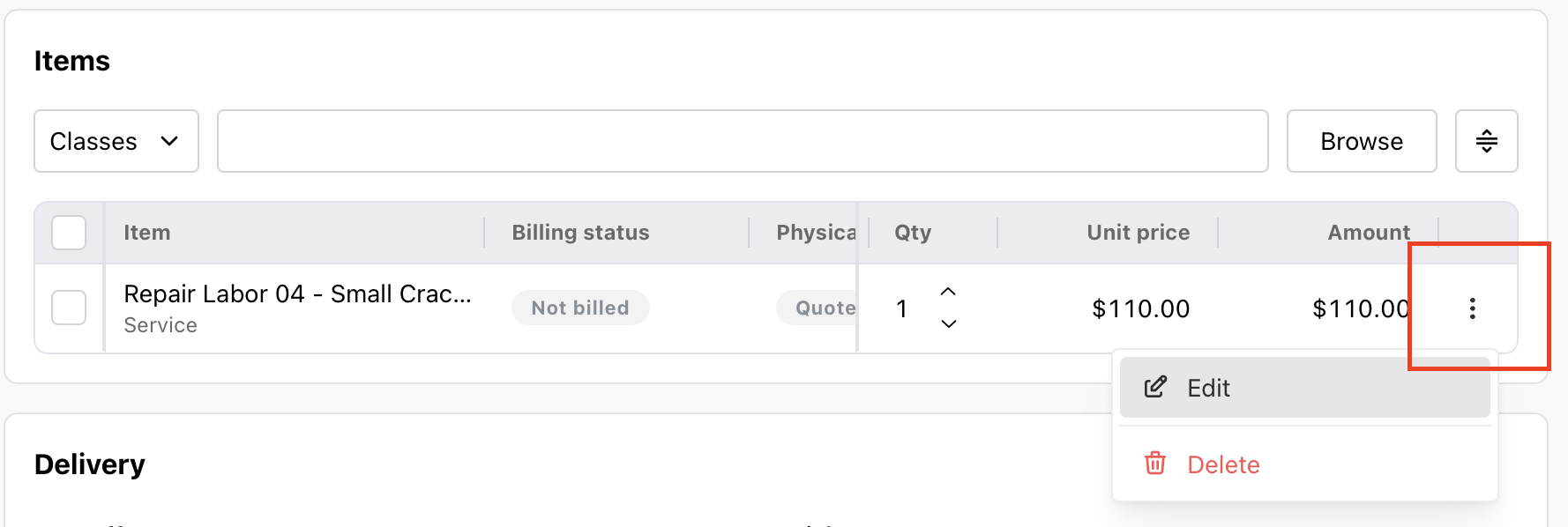
Locate the line item you want to update and click the three-dot ellipsis (⋮) next to it.
Click Edit.
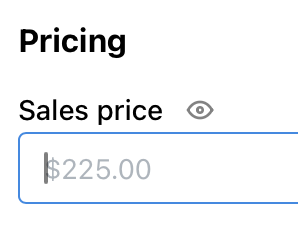
The Sales price field will appear greyed out, but you can click directly into the field and type the new dollar amount.
Editing the Price on a New Rental Order
Click the three-dot ellipsis (⋮) next to the line item.
Click Edit.
The Sales price field will also appear greyed out, but you can click into the field and type a new dollar amount.
Note: Even though the Sales price field appears greyed out, it is still editable. Simply click inside the field and type your desired amount to override the default system price.
Troubleshooting
If you are still unable to edit the price after following the steps above, try clearing your browser cache and logging back into Moab, then attempt the edit again.