How to Add an Additional Email Address to Outgoing Invoices?
Last updated: September 30, 2026
If you need to ensure that a second email address is automatically copied on all outgoing invoices, you can add a CC email address to your customer settings in Moab.
Steps to Add a CC Email to Outgoing Invoices
Log in to your Moab account.
Navigate to Settings > Business > Custom fields > Customer field.
Select Add field and choose Multi-Select from the drop down.
Create a secondary email custom field and choose Customer contact as Object Type.
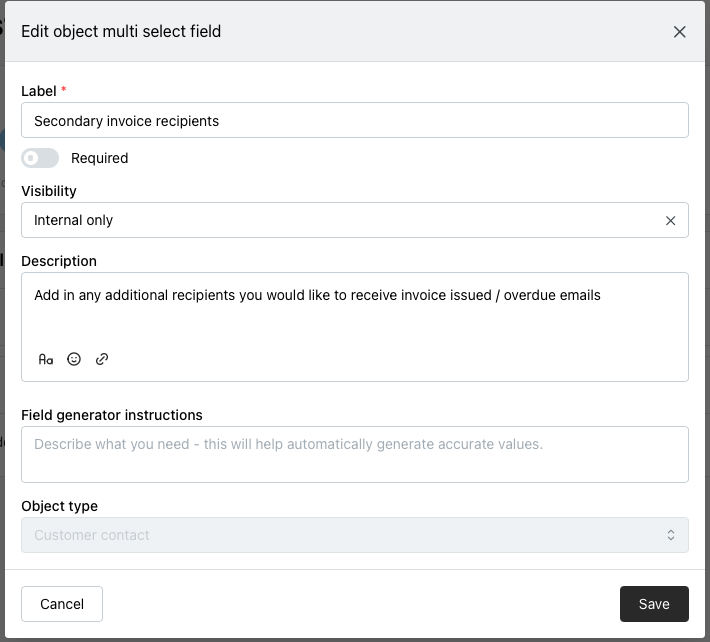
Save your changes.
Once saved, navigate to Customers and click Edit. You can now add the specified email address to be automatically included as a CC recipient on all outgoing invoice emails.
Need Further Help?
If you're unable to locate the CC email setting or need assistance configuring it for your account, please reach out to our support team for guidance.